Spell check in multiple languages with Firefox
Bienvenidos!1 I’ve been learning Spanish for just over a year and I often type messages in either Spanish or English (my native language) with coworkers and friends. Just like most people, I make spelling mistakes in both languages. 🙃
Firefox offers a feature for multi-language spell checking and translations but it can be a bit challenging to set up. This post explains how to load languages into Firefox and use them for spell checking.
Installing languages#
Take a trip over to [Dictionaries and Languages Packs] on Mozilla’s site. Note that there are two columns available to you here:
- Language packs give you the option to change your interface language to something different than your system’s default language.
- Dictionaries help with checking spelling.
In the second column, click on the language you want to add for checking spelling. In my case, I picked the Spanish (Spain) Dictionary along with the Spanish (Mexico) Dictionary. Install the dictionaries you want just like any other add-on!
Go to the about:addons page in Firefox and you should see your languages under Languages and Dictionaries on the left side.
Enable the language#
Find an input field and right click inside the field. You should see a Languages context menu appear. Roll over that menu and a new menu pops out to the side:
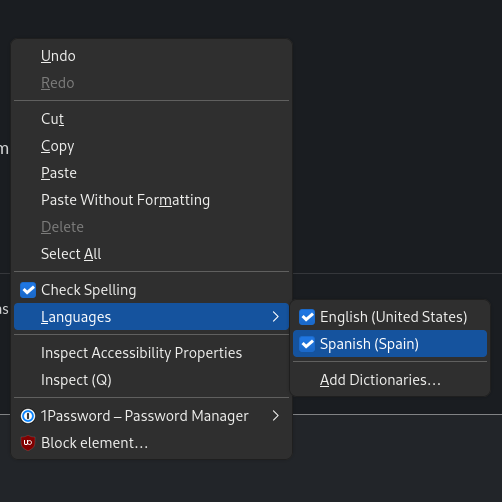
Click the checkbox to enable the languages that you want to use with the spell checker. That takes effect immediately!
Gracias por leer hasta aquí!2 😜